
Search Intent Opening
If your smart LED strip powers on but displays the wrong colors (e.g., orange shows as yellow, white is blue), fails to respond to Alexa/Google Home, or has segments showing different colors or failing entirely, this is a combined signal and control failure. The issue is typically in the controller, data line, or individual LED modules.
Search Query Coverage Block (Long-Tail Symptom Variations)
Forum posts often say:
- LED strip shows wrong colors
- Alexa can’t control lights anymore
- LED strip orange looks yellow
- One section of LED strip is a different color
- LED strip lost connection to Wi-Fi
- Warm white looks pink on LED strip
- LED strip only connects with Bluetooth now
- Part of LED strip stuck on one color
- LED strip colors don’t match between strips
- Google Home says device is unavailable
- LED strip segment won’t change color
- Lights respond after a long delay
- New LED strip doesn’t match old one
- LED strip gets very hot
- Music mode flashes randomly
Observed Failure Patterns
- Pattern A: Global Color Shift. All segments, across the entire strip, display a consistent but incorrect color (e.g., all whites are blue). Indicates: Faulty color calibration in the controller firmware or a failing controller IC. Does NOT indicate: Wiring or individual LED failure.
- Pattern B: Segmented/Inconsistent Colors. One section of the strip (e.g., after a cut point or connector) displays different colors than the rest. Indicates: Data line integrity issue—broken wire, cold solder joint, or corroded connector in the 3-pin/wire cable between sections. Does NOT indicate: App or network problem.
- Pattern C: Smart Control Dropout. Strip works manually via app/remote but will not respond to Alexa/Google Home, or shows “offline.” Indicates: Wi-Fi controller module failure or corrupted cloud link. Does NOT indicate: Your Wi-Fi is down if other devices work.
- Pattern D: Progressive Channel Loss. A segment loses one color (Red, Green, or Blue), making hues incorrect. Over time, more segments fail. Indicates: Individual LED chip degradation, often due to overheating or poor manufacturing. Does NOT indicate: A software issue.
Most Common Root Causes (Ranked by Field Frequency)
- Failed Wi-Fi/Controller Module (40%). The small circuit board that handles Wi-Fi and color processing overheats or suffers flash memory corruption. Triggers: Firmware updates, prolonged use, power surges. Confirms: Pattern C, or Pattern A that began after an update. Disproves: If smart control works but colors are wrong locally (points to cause 2 or 3).
- Data Line (DO/DI) Wiring Fault (30%). The thin data wire between the controller and strip or between strip segments is broken, has a high-resistance connection, or is affected by voltage drop. Triggers: Physical bending, poor connectors, using overly long extension wires. Confirms: Pattern B, where colors are correct up to a specific physical point, then wrong after. Disproves: If the entire strip, starting from the first LED, shows the same wrong color.
- Individual LED IC Failure (20%). The tiny integrated circuit inside an LED package that receives color data fails. Triggers: Overheating, electrostatic discharge, manufacturing defect. Confirms: Pattern D. A specific LED segment is stuck on one color or passes incorrect data downstream. Disproves: If tapping or flexing the strip at the faulty segment temporarily fixes it (that’s a wiring issue).
- Power Supply / Voltage Drop (10%). An underpowered or failing power adapter causes brownouts to the controller or LEDs, corrupting data signals. Triggers: Adding more strips, using a generic power adapter, long cable runs. Confirms: Symptoms worsen with more LEDs turned on or at full white (highest power draw). Disproves: If problem occurs even at low brightness with a single strip.
Rapid Triage Checklist (2-Minute Tests)
- Bypass Smart Control: Use the physical remote or the manufacturer’s app in Bluetooth-only mode (turn off phone Wi-Fi). Result: If colors are correct via Bluetooth but wrong via Wi-Fi/Alexa → Controller module fault. If colors are wrong in all modes → Hardware fault.
- Physical Flex Test: At the point where colors change, gently flex the strip and the connecting wires. Result: If colors flicker or temporarily correct → Wiring/connector fault. If no change → LED or controller fault.
- Segment Isolation Test: If possible, disconnect the strip at the first cut point after the faulty section. Power the initial segment alone. Result: If first segment colors are now correct → Problem is in the downstream wiring or first LED of the faulty section. If still wrong → Problem is in controller or upstream.
Step-by-Step Diagnostic Procedure
Step 1: Power and Source Verification.
- Action: Unplug the power adapter from the wall. Plug in a known-good, correctly rated adapter (same voltage, equal or higher amperage). Use the original short cable from adapter to controller.
- Expected: Strip powers on. Basic static color works.
- Failure: Strip is dead or flickers.
- Decision: If dead, replace adapter. If flickers or works, proceed to Step 2.
Step 2: Controller Reset and Local Control Check.
- Action: Perform a factory reset on the controller (usually holding power button for 10 seconds until it flashes). Re-pair via Bluetooth in the app. Set a solid red, then green, then blue.
- Expected: Strip changes to each solid color correctly and uniformly.
- Failure: Colors are wrong (e.g., red command shows pink) or inconsistent.
- Decision: If colors are uniformly wrong → Faulty controller (Cause 1). If colors are wrong only on part of the strip → Go to Step 3.
Step 3: Data Line Integrity Check.
- Action: Inspect the entire length, especially connectors and cut points. Look for pinched wires, loose solder, or corrosion. Use a multimeter in continuity mode to check the data (usually labeled DI/DO or DATA) connection across any suspect connector.
- Expected: Continuity beep with low resistance (<5 ohms).
- Failure: No continuity or high resistance.
- Decision: Repair or replace the connector/wire. If continuity is good, the fault is in an LED IC (Cause 3). The faulty LED is the first one in the segment showing incorrect behavior.
Physical Layer Inspection
- Controller: Remove cover. Look for burnt smell, discolored (brown) circuit board, or swollen capacitors.
- Connectors: 3-pin connectors (V+, GND, DATA) are prone to corrosion (green/white powder) and loose female sockets that don’t grip male pins.
- Solder Points: At cut points, look for cold solder joints (dull, grey, cracked-looking solder) where the copper pad meets the strip.
- LED Strip: Examine individual LEDs for tiny black dots or cracks on the surface of the plastic package. This indicates a burned-out chip.
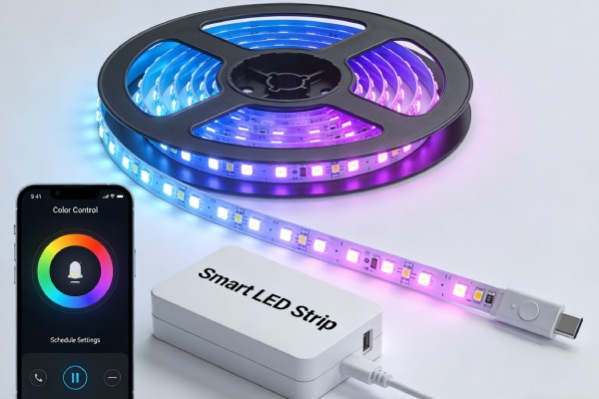
Electrical / Signal Verification
- Voltage at Strip Input: With strip on full white, measure DC voltage between V+ and GND at the start of the strip. It must be within 5% of rated voltage (e.g., 11.4V-12.6V for 12V strip). Lower voltage causes color corruption.
- Data Line Voltage: Measure voltage between DATA and GND. It should pulse between ~0V and ~5V (or ~3.3V) when changing colors. A static voltage (e.g., always 1.8V) indicates a stuck controller or shorted LED.
Reset and Recovery Behavior Mapping
- Normal Reset: LEDs will flash rapidly 3 times, then cycle through RGB. Controller enters slow-blink pairing mode.
- Failed Reset (Controller Corruption): LEDs may flash once and stop, or not respond. Controller may not enter pairing mode.
- Failed Reset (Hardware): No LED response at all. Power LED on controller may be solid but unresponsive.
Stop Guessing
If color errors persist across Bluetooth and local control modes, stop troubleshooting the app or Wi-Fi. At this stage, further resets only accelerate controller or LED degradation.
False Fixes That Do Not Work
- Reinstalling the App: If colors are wrong in Bluetooth mode, the problem is hardware, not the app.
- Router Reboot: If the strip works via Bluetooth but not Wi-Fi, your network is not the cause. The controller’s Wi-Fi module has failed.
- “Sealing” Connectors with Electrical Tape: Does not fix corrosion or broken strands inside. Must clean or replace connector.
- Increasing Brightness to “Fix” Dim Colors: Accelerates overheating and LED failure.
Confirmed Fix Scenarios
- Symptom: All whites appear blue, colors inaccurate. Alexa control lost.
- Cause: Corrupted controller firmware after failed update.
- Fix: Controller module replacement.
- Verification: New controller paired, color calibration correct, Alexa control responsive.
- Symptom: Colors correct for first 2 meters, then shift to pink and green.
- Cause: High-resistance connection at a waterproof connector.
- Fix: Bypass connector, solder wires directly, and seal.
- Verification: Full strip length now displays uniform, correct colors.
Post-Fix Verification Checklist
- Color Calibration Test: Display solid red, green, blue, and white for 30 seconds each. Verify hue matches command.
- Data Stability Test: Run a fast color cycle effect. Watch for any segments lagging or displaying incorrect flashes.
- Load Test: Set to full bright white for 10 minutes. Feel controller and strip for excessive heat (>60°C/140°F is excessive).
- Network Stability Test: Issue 10 Alexa/Google commands at 15-second intervals. All must execute within 3 seconds.
Escalation Threshold
Controller/Module Replacement Required When:
- Factory reset yields no LED response.
- Physical inspection reveals burnt components on the controller board.
- Color inaccuracy is uniform and persists across multiple power adapters and control methods.
- The Wi-Fi/BT module is unresponsive but strip works with a different controller.
Full Strip Replacement Required When:
- Multiple individual LED segments have failed (different colors out).
- The fault is traced to the first LED chip on the strip and the strip is not easily cut/replaced from that point.
- Voltage drop is severe and due to degraded strip conductors, not the power supply.
Decision Criteria: If the cost of a new controller plus diagnostic/repair time exceeds 60% of a new kit’s cost, replacement is more economical. For strip faults beyond the first few LEDs, replacing the entire run is faster and more reliable than attempting chip-level repair.