
Search Intent Opening
If your robot vacuum runs for 5–15 minutes, then returns to the dock and reports “mission complete” after cleaning only one room—or if it spins in circles for 30 seconds then stops, or if it cleans the same 3-foot section over and over until you manually kill it—this failure pattern is not a software bug. It’s one of several hardware or environmental faults that trigger the unit to abort the cleaning cycle.
When a robot vacuum keeps stopping mid clean, the most common causes are brush roller jams, corrupted maps, blocked navigation sensors, or battery degradation. In most cases the problem can be diagnosed in minutes by checking the brush assembly, sensors, and navigation system.
I’ve opened hundreds of these units on service calls across iRobot, Roborock, Ecovacs, and Shark models. The user always says the same thing: “It keeps stopping.” Most assume the robot is defective. 80% of the time, it’s a brush jam, a navigation sensor issue, or a mapping corruption that resolves with a hard reboot.
Search Query Coverage Block (Long-Tail Symptom Variations)
Users commonly describe this failure as:
- robot vacuum keeps stopping mid clean
- robot vacuum goes back to dock after 5 minutes
- robot vacuum spins in circles then stops
- robot vacuum cleans same spot over and over
- robot vacuum stops and says check brush
- robot vacuum won’t finish cleaning whole house
- robot vacuum gets stuck in a loop
- robot vacuum stops randomly during cleaning
- robot vacuum returns to base too early
- robot vacuum keeps stopping and starting
- robot vacuum battery dies before finishing
- robot vacuum spins but doesn’t move
- robot vacuum stops on carpet but not hard floor
- robot vacuum keeps stopping with error message
- robot vacuum stops every few minutes
Observed Failure Patterns
Pattern A – Runs 5–15 minutes, returns to dock, reports mission complete
Occurs early in cleaning cycle. Indicates the robot believes it has finished cleaning. Usually caused by corrupted map, blocked cliff sensor, or bumper switch stuck engaged. Does NOT indicate a battery failure—battery would trigger low-power return, not “complete.”
Pattern B – Spins clockwise/counterclockwise in same spot for 30+ seconds, then stops or moves on erratically
Occurs when robot encounters an area it can’t navigate. Indicates navigation confusion from poor lighting, reflective floors, or sensor blockage. Does NOT indicate a motor failure—motors are running during spins.
Pattern C – Repeatedly cleans the same 3-foot section in a loop
Occurs after mapping is complete. Indicates mapping corruption or virtual wall misconfiguration. Does NOT indicate a brush issue—the robot is moving normally, just repeating the same path.
Pattern D – Stops suddenly, requests user intervention, shows error
Occurs when brush roller detects abnormal resistance. Indicates debris jam, hair wrap, or foreign object stuck. Does NOT indicate electrical failure—the motor protection circuit is working.
Pattern E – Refuses to clean specific areas of the house
Occurs after initial mapping. Indicates the robot couldn’t access those areas during mapping and excluded them permanently. Does NOT indicate a hardware failure—the map simply doesn’t include those zones.
Pattern F – Stops on carpet but runs normally on hard floors
Occurs when robot transitions from hard surface to carpet. Indicates cliff sensors misreading dark carpet, wheel traction loss, or bumper sensitivity. Does NOT indicate battery failure—battery issues affect all surfaces equally.
Most Common Root Causes (Ranked by Field Frequency)
| Rank | Cause | Frequency |
|---|---|---|
| 1 | Debris or hair jam in brush roller | 30% |
| 2 | Corrupted or incomplete map | 25% |
| 3 | Blocked cliff sensors or bumper switch | 15% |
| 4 | Battery degradation / insufficient runtime | 12% |
| 5 | Navigation sensor failure or obstruction | 10% |
| 6 | Wheel motor failure or traction loss | 5% |
| 7 | Software glitch / stuck state | 3% |
1. Debris or hair jam in brush roller (30%)
- Why: Small objects, cat toys, or hair wrap create motor resistance
- Trigger: Robot stops mid-clean with error or returns to dock
- Confirm: Remove brush roller; resistance when turning by hand; visible debris
- Disprove: Brush spins freely, no debris, no error code
2. Corrupted or incomplete map (25%)
- Why: Initial mapping run failed to explore all areas; map data corrupted
- Trigger: Robot finishes cleaning after 10 minutes, only did one room
- Confirm: App shows map with missing rooms; robot avoids certain areas
- Disprove: Full map visible in app; robot covers entire floor
3. Blocked cliff sensors or bumper switch (15%)
- Why: Dust blocks cliff sensors; bumper switch stuck from impact
- Trigger: Robot stops on carpet but runs on hard floor; reverses constantly; stops mid-clean
- Confirm: Sensors covered in dust; bumper doesn’t click when pressed
- Disprove: Sensors clean; bumper clicks and releases
4. Battery degradation / insufficient runtime (12%)
- Why: Battery no longer holds charge for full cleaning cycle
- Trigger: Robot returns to dock with “low battery” after 20–30 minutes
- Confirm: Unit runs for decreasing time between charges; older unit (2+ years)
- Disprove: Runs 60+ minutes on new battery; returns due to “complete” not “low battery”
5. Navigation sensor failure or obstruction (10%)
- Why: LiDAR or camera sensor blocked; laser turret stuck
- Trigger: Robot spins in circles; hesitates for 30–40 seconds; misses furniture
- Confirm: Sensor turret doesn’t spin; camera lens dirty; navigation erratic in app
- Disprove: Sensor spins; robot navigates normally in open areas
6. Wheel motor failure or traction loss (5%)
- Why: Wheel motor worn; wheels worn smooth; carpet too high
- Trigger: Robot moves slowly; gets stuck on carpet; one wheel not turning
- Confirm: One wheel doesn’t spin when unit lifted; tread worn smooth
- Disprove: Both wheels spin; robot moves at normal speed
7. Software glitch / stuck state (3%)
- Why: Firmware crash; memory full; stuck in recovery loop
- Trigger: Robot stops with no error; app unresponsive; won’t respond to buttons
- Confirm: Hard reboot resolves; problem returns after schedule
- Disprove: Problem persists after hard reboot
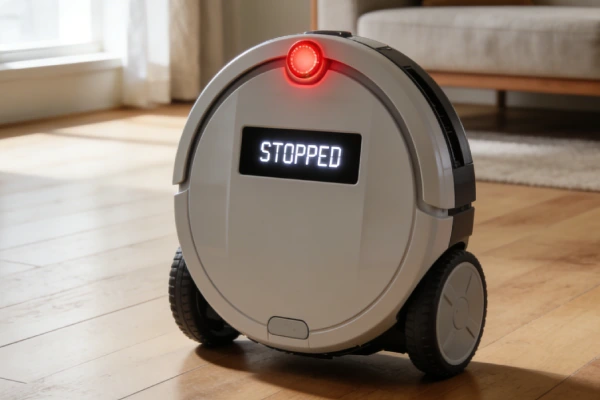
Robot Vacuum Keeps Stopping – Quick Diagnosis Flow
text复制下载
Robot stops mid-clean
↓
Check brush roller
↓
Brush jammed → clean brush, remove hair wrap
Brush free → check sensors
↓
Sensors dirty → clean cliff sensors, bumper contacts, LiDAR turret
Sensors clean → check map
↓
Map corrupted (missing rooms) → delete map, remap from scratch
Map OK → check battery runtime
↓
Runtime under 30 minutes → replace battery
Runtime over 30 minutes → check navigation sensors
↓
Robot spins in circles → LiDAR turret or camera failure
Robot stops on carpet → cliff sensor misreading dark carpet
Robot loops same spot → virtual wall trap or reflective surface
Rapid Triage Checklist (2-Minute Tests)
- Flip unit over; spin brush roller by hand
- Spins freely → go to Step 2
- Stiff or won’t spin → debris jam; remove and clean
- Lift unit; press each wheel down; spin by hand
- Both spin freely; robot moves when placed on floor → go to Step 3
- One wheel won’t spin; grinding sound → wheel motor failure
- Wipe all sensors (cliff sensors underneath; bumper sensors front; LiDAR turret on top)
- Sensors clean → go to Step 4
- Dust visible → clean; retest
- Press bumper in center; listen for click; release
- Clicks and returns → go to Step 5
- No click; stuck in; uneven travel → bumper switch stuck
- Place robot 3 feet from dock; press “clean”
- Runs in straight line → go to Step 6
- Spins in circles; backs up repeatedly → navigation sensor issue
- Check app for map and battery
- Map shows full coverage; battery > 60% after 10 min → software issue
- Map missing rooms; battery < 30% after 10 min → corrupted map or dead battery
- Robot stops on carpet test
- Place on hard floor: runs normally
- Place on carpet: stops or reverses → cliff sensor issue or traction loss
Step-by-Step Diagnostic Procedure
Step 1: Observe the stop behavior
Place robot in center of room. Start cleaning cycle. Watch what happens at the moment it stops.
- Returns to dock → skip to Step 4
- Spins then stops → go to Step 2
- Stops with error on display → go to Step 3
- Keeps running but stays in one area → skip to Step 5
- Stops on carpet but runs on hard floor → go to Step 6
Step 2: Navigation test
If robot spins in circles for 30+ seconds then stops or moves erratically:
- Check LiDAR turret (top sensor). Should spin when robot moves.
- If turret doesn’t spin → sensor motor failure; module replacement required.
- If turret spins but navigation fails → clean camera lens (on models with visual navigation) or check lighting.
- If lighting is poor (dark room under furniture) → navigation failure is environmental; add lighting or move robot to better-lit area.
Step 3: Error code check
If robot stops with error:
- “Check brush” or brush icon → debris jam; remove brush, clear hair, check side brushes.
- “Wheel error” → lift unit; spin wheels; one wheel will have resistance; wheel motor replacement.
- “Bumper stuck” → press bumper repeatedly; if it doesn’t click, remove bumper cover; clean switch contacts.
- “Cliff sensor error” → wipe all four cliff sensors underneath with dry cloth; if persists, sensor replacement.
Step 4: Premature return to dock
If robot runs 5–15 minutes, returns to dock, reports mission complete:
- Check map in app. If map shows only one room cleaned, mapping is corrupted.
- Hard reboot: remove from dock; hold power button 20 seconds; place back on dock; let it remap.
- If map shows full coverage but robot stopped early → battery issue. Run battery test: start cleaning with no dock nearby. When it dies, note runtime. Under 30 minutes = replace battery.
Step 5: Cleaning loop (same spot repeatedly)
If robot cleans same 3-foot section over and over:
- Check virtual walls in app. User may have set a no-go zone that traps robot.
- Check for mirrors or reflective surfaces in that area. Robot sees its reflection as another room and loops.
- If no virtual walls and no reflective surface → mapping corruption. Delete map in app. Remap from scratch.
Step 6: Stops on carpet only
If robot stops or reverses immediately upon reaching carpet:
- Check cliff sensors. Dark carpet absorbs infrared light; sensors think there’s a drop.
- Place white paper on carpet edge. If robot crosses, cliff sensors are too sensitive for dark carpet.
- If white paper test works → tape over cliff sensors (only if unit never goes near stairs).
- If robot moves onto carpet but stops after a few feet → wheel traction loss. Check wheel treads; replace wheels if worn smooth.
Physical Layer Inspection
Brush roller assembly
- Remove brush guard. Pull brush roller.
- Spin bearings at each end. Should spin freely.
- Look for hair wrapped around ends. Cut away with scissors.
- Check for melted plastic or burnt smell around motor—indicates motor overheated from repeated jams.
Wheels and traction
- Lift unit. Spin each wheel independently. Should spin with light resistance.
- Look for tread wear. Bald wheels lose traction on carpet and hard floors.
- Check for debris wrapped around wheel axle.
Bumper assembly
- Press center of bumper. Should travel evenly and click.
- If bumper sticks or doesn’t click, remove bumper (2–4 screws). Clean foam dust from microswitches.
- Look for cracked bumper mounts from impact.
Sensor array
- Cliff sensors: 4–6 small lenses underneath. Wipe with dry microfiber. Dark carpet may cause false readings.
- Wall sensors: small lens on right side (most models). Wipe clean.
- LiDAR turret: gently rotate by hand. Should spin freely. If grinding, turret motor failed.
- Camera lens (visual navigation models): wipe with microfiber. Oily residue blocks navigation.
Dustbin and filter
- Remove dustbin. Check filter. Clogged filter reduces suction; robot may interpret area as “clean” prematurely.
- Check dustbin full sensor (if equipped). Debris can block sensor, causing false “bin full” stop.
Electrical / Signal Verification
Battery voltage test (if accessible)
- Measure battery pack voltage at dock contacts.
- Normal: 14.4V–16.8V (for 4-cell lithium pack).
- Under 12V after full charge → battery replacement required.
- During cleaning: if voltage drops rapidly under load, cells failing.
Wheel motor current draw
- Not testable without disassembly. Observable evidence: one wheel doesn’t spin when unit is lifted; robot moves in circles.
- If one wheel spins slower than other, wheel motor failure.
Bumper switch continuity
- Remove bumper. Test microswitch with multimeter in continuity mode.
- Switch should close when bumper pressed. No continuity = replace switch.
Reset and Recovery Behavior Mapping
Normal reset behavior:
- Hard reboot (hold power 20 seconds): unit shuts down. Place on dock. Lights cycle. Robot powers up. Returns to dock. Mapping resumes after clean command.
Failed reset behavior:
- After hard reboot, robot still returns to dock after 5 minutes with no error.
- After hard reboot, robot spins in circles immediately.
- After hard reboot, app still shows corrupted map.
- Any of these indicate permanent mapping corruption or sensor failure.
Recovery after brush jam:
- Normal: user clears jam; robot resumes cleaning from where it stopped.
- Failure pattern: after clearing jam, robot still stops with same error immediately. Indicates motor protection circuit tripped—needs power cycle.
Recovery after map corruption:
- Normal: delete map in app. Run new mapping run. Robot explores all areas. Save map.
- Failure pattern: new mapping run also fails to explore all areas. Indicates hardware sensor issue preventing complete exploration.
Robot Vacuum Stops on Carpet but Works on Hard Floors
Quick Answer:
When a robot vacuum stops immediately upon reaching carpet, the cliff sensors are likely misreading dark carpet as a drop. If it moves onto carpet then stops after a few feet, the wheels have lost traction or the carpet is too high for the unit.
Causes:
- Dark carpet absorbs IR light; cliff sensors trigger falsely
- Wheel treads worn smooth; no traction on carpet fibers
- Carpet pile height exceeds robot’s clearance (over 0.75 inches)
- Bumper switch stuck from carpet fibers
Fixes:
- Test with white paper at carpet edge. If robot crosses, tape over cliff sensors (only if no stairs).
- Replace wheel assemblies if treads are bald
- Move robot to lower-pile carpet or use on hard floors only
- Clean bumper switch contacts; remove carpet fibers
False Fixes That Do Not Work
“Clean the dustbin”
People empty the bin and assume that’s why it stopped. If the bin is full, the robot will report “bin full” or stop. But if it’s stopping with “mission complete” or spinning, the bin has nothing to do with it.
“Move the dock”
Users move the dock trying to fix mapping errors. If the map is corrupted, moving the dock makes it worse—the robot now has two conflicting reference points. Fix the map first, then reposition dock if needed.
“Run the vacuum again—maybe it was just confused”
If the robot consistently stops in the same pattern, running it again without fixing the cause just repeats the failure. A second run that works is a fluke; a pattern of failure needs diagnosis.
“Replace the battery”
Users replace the battery when the robot returns to dock after 10 minutes with “mission complete.” If the battery was dead, it would say “low battery,” not “complete.” Replacing the battery won’t fix a mapping issue.
“Update the firmware”
Firmware updates sometimes fix mapping bugs, but if the hardware is failing—stuck bumper, jammed brush, dead wheel motor—no update will help. Verify hardware first.
“Buy a new filter”
A clogged filter can reduce suction, but it won’t cause the robot to stop with “mission complete” or spin in circles. This addresses airflow, not navigation or mapping.
Confirmed Fix Scenarios
Symptom: Robot runs 5 minutes, returns to dock, app shows 10% coverage. iRobot Roomba i7.
Confirmed cause: Initial mapping run was interrupted. Map corrupted—robot thinks it finished cleaning.
Fix: Hard reboot. Delete map in app. Remap from scratch with robot starting at dock and completing full exploration without interruption.
Verification: Robot cleans entire floor on next run; app shows 90%+ coverage.
Symptom: Robot spins in same spot for 30 seconds, then moves erratically. Roborock S6.
Confirmed cause: LiDAR turret not spinning. Dust jammed turret drive belt.
Fix: Remove top cover. Clean turret drive belt and gears. Lubricate bearing. Reassemble.
Verification: Turret spins when robot moves; navigation returns to normal.
Symptom: Robot stops mid-clean with brush error; brush roller spins freely when removed. Ecovacs Deebot.
Confirmed cause: Side brush jammed with hair. Motor protection detected overload.
Fix: Remove side brush screw. Clean hair wrapped around brush shaft. Reinstall.
Verification: Robot runs full cycle without stopping.
Symptom: Robot cleans same 3-foot section repeatedly until manually stopped. Shark IQ.
Confirmed cause: Virtual wall set in app that boxed robot into that area.
Fix: Remove virtual wall boundary. Remap area.
Verification: Robot moves freely through previously looped area.
Symptom: Robot runs 20 minutes, returns to dock with “low battery,” won’t finish cleaning. iRobot Roomba 980.
Confirmed cause: Battery degradation. Original battery aged 3 years.
Fix: Replace with OEM battery. Calibrate by running full discharge cycle.
Verification: Robot runs 60+ minutes on full charge.
Symptom: Robot stops immediately when reaching carpet. Shark AV1010AE.
Confirmed cause: Dark carpet absorbing cliff sensor IR light. Sensors triggered false drop detection.
Fix: Placed white paper strips under carpet edge as transition. Robot crossed onto carpet.
Verification: Robot cleaned carpet area without stopping.
Typical Repair Costs
| Repair | DIY Difficulty | Parts Cost (USD) | Labor Cost (USD) | Total Estimate |
|---|---|---|---|---|
| Brush roller cleaning | Easy | $0–15 | $0–30 | $0–45 |
| Brush motor replacement | Medium | $20–40 | $40–80 | $60–120 |
| Wheel motor replacement | Medium | $30–60 | $50–100 | $80–160 |
| LiDAR sensor module | Hard | $70–120 | $80–150 | $150–270 |
| Battery replacement | Easy | $25–80 | $20–40 | $45–120 |
| Cliff sensor cleaning | Easy | $0 | $0–30 | $0–30 |
| Cliff sensor replacement | Medium | $15–40 | $40–80 | $55–120 |
| Mainboard replacement | Hard | $80–150 | $100–200 | $180–350 |
| Bumper switch cleaning | Easy | $0 | $0–30 | $0–30 |
| Bumper switch replacement | Easy | $5–15 | $20–40 | $25–55 |
Post-Fix Verification Checklist
- Place robot in center of room. Press clean. Robot moves in straight line without circling.
- Robot navigates around furniture without stopping or hesitating for more than 10 seconds.
- After 5 minutes of cleaning, check app. Map shows progress; robot not stuck in loop.
- Robot passes under chairs and around table legs without bouncing repeatedly.
- Robot transitions between hard floor and carpet without stopping (if carpet test was issue).
- Run full cleaning cycle. Robot returns to dock only when battery is low (20% remaining) or cycle completes.
- Brush roller spins freely before and after cycle. No hair wrap at ends.
- App map shows full coverage after cycle. No missing rooms.
Escalation Threshold
Board replacement required:
- LiDAR turret motor not spinning; motor tested and failed (no voltage at turret motor terminals).
- Bumper switch microswitches failed continuity test; cleaning didn’t resolve.
- Main board shows burnt components; visible scorch marks.
Module replacement required:
- Wheel motor assembly not spinning under load; resistance test shows open circuit.
- Brush motor assembly seized; burnt smell from motor housing.
- Battery pack voltage below 10V after full charge; won’t hold charge.
Factory repair required:
- Camera navigation system fails calibration after cleaning; no image recognition.
- Main board failure after power surge; multiple sensors unresponsive.
- Mapping corruption persists after multiple hard resets and full remaps with new battery and cleaned sensors.
- LiDAR module replacement doesn’t resolve navigation issues; internal optics damaged.
Decision criteria: If replacement parts (wheel motor, LiDAR module, main board) exceed 50% of new unit cost, recommend replacement. If unit is under warranty, escalate to manufacturer. If unit has had three or more failures in 12 months, replace—reliability won’t improve.