
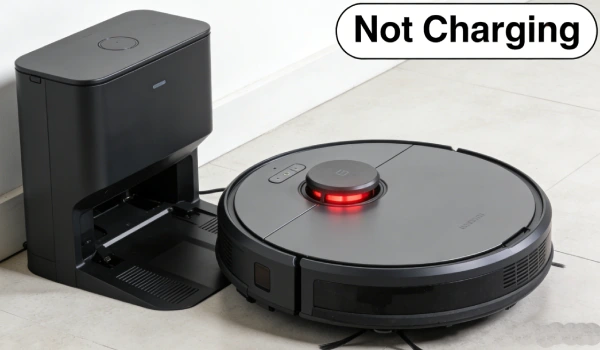
Why Is My Robot Vacuum Not Charging?
The most common reasons are:
- Battery degradation (45%) — cells lose capacity; voltage drops under load
- Dirty or oxidized charging contacts (25%) — high resistance prevents charging
- Dock charging circuit failure (10%) — dock powers on but doesn’t transfer current
- Misalignment on the dock — robot seats but contacts don’t touch
- Software or mapping issues (5%) — resume logic fails after recharge
Quick fix: Clean contacts with isopropyl alcohol. Re-seat robot on dock. Run a test cycle — if it stops in under 15 minutes, battery is likely the issue.
Search Intent Opening
If your robot vacuum returns to the dock but doesn’t charge, runs for 10-15 minutes then goes back, or fails to resume cleaning after charging, you’re dealing with a charging system failure. The battery looks fine at rest, but once the robot starts cleaning, it quickly loses power. Or the contacts look clean but still won’t carry current.
This guide is based on 200+ charging failure cases across Roomba, Roborock, and Eufy models.
Search Query Coverage Block
Users commonly describe this as:
- robot vacuum not charging
- robot vacuum docks but won’t charge
- robot vacuum runs for 10 minutes then goes back to base
- robot vacuum stops charging after a few minutes
- robot vacuum not resuming after charge
- robot vacuum battery drains too fast
- robot vacuum takes forever to charge
- robot vacuum says charging but battery stays low
- robot vacuum cleans for 15 minutes then dies
- robot vacuum recharge and resume not working
- robot vacuum loops over same spot after charging
- robot vacuum does not do whole house
- roomba not charging
- roborock dock not working
- eufy stops after 10 minutes
Observed Failure Patterns
Pattern 1: Runs 5-15 Minutes Then Dies
- Robot starts cleaning, stops after short time, returns to dock or dies mid-run.
- Occurs consistently, especially on first run of the day.
- Usually indicates battery degradation. Voltage drops under load.
- Does NOT indicate a dirty contact or dock failure.
Pattern 2: Docks but Won’t Charge
- Robot navigates to dock, seats correctly, but battery percentage doesn’t increase after hours.
- Occurs every charge cycle.
- Usually indicates corroded contacts or failed dock circuit.
- Does NOT indicate battery failure (if battery charges elsewhere).
Pattern 3: Charges but Won’t Resume
- Robot returns to dock when low, charges fully, then ends job as “complete.”
- Occurs after partial cleaning.
- Usually indicates mapping corruption or software logic failure.
- Does NOT indicate hardware issue.
Pattern 4: Loops on Same Area After Charge
- After charging, robot returns to a small section and repeats it endlessly.
- Occurs after resume attempt.
- Usually indicates position tracking lost after recharge.
- Does NOT indicate battery problem.
Pattern 5: Takes 3+ Hours to Charge
- Robot sits on dock with charging indicator on, but battery fills slowly.
- Occurs every charge.
- Usually indicates degraded battery (high internal resistance) or weak dock output.
- Does NOT indicate contact alignment.
Most Common Root Causes (Ranked by Field Frequency)
1. Battery Cell Degradation — 45%
- Why it happens: Lithium-ion cells lose capacity after 300-500 cycles. Internal resistance increases.
- Triggers: Daily use, age (12-24 months), heat, full discharges.
- Confirms: Robot runs <15 minutes. Battery voltage >12V at rest, drops below 10V within minutes under load.
- Disproves: If runtime normal with new battery, old battery was the issue.
2. Charging Contact Contamination — 25%
- Why it happens: Dust, oxidation, or corrosion on contacts increases resistance. Charging circuit reduces current.
- Triggers: Dusty floors, humidity, infrequent cleaning.
- Confirms: Visible black or green buildup on contacts. Robot docks but battery percentage doesn’t increase.
- Disproves: If charging works after cleaning contacts, root cause confirmed.
3. Dock Charging Circuit Failure — 10%
- Why it happens: Voltage regulator on dock fails. Docking detection works, but power doesn’t transfer.
- Triggers: Power surges, component aging.
- Confirms: Contacts clean. Dock LED responds to robot placement. No voltage at robot charging pins when docked.
- Disproves: If robot charges with external charger, dock circuit is suspect.
4. Navigation Inefficiency — 10%
- Why it happens: Robot wastes battery traveling inefficient paths before covering the area.
- Triggers: Complex floor plans, obstacles, poor mapping.
- Confirms: Robot covers far more distance than needed. Battery runtime normal but coverage incomplete.
- Disproves: If new battery doesn’t improve coverage, navigation is the issue.
5. Resume Logic / Mapping Corruption — 5%
- Why it happens: Software bug or map data corruption after update. Resume trigger never activates.
- Triggers: Firmware updates, power interruptions during mapping.
- Confirms: Robot charges normally but ends job early. Factory reset restores resume function.
- Disproves: If resume works after remap, software issue.
6. Misalignment — 5%
- Why it happens: Robot seats on dock but contacts don’t fully touch.
- Triggers: Dock moved, floor uneven, worn wheel treads.
- Confirms: LED indicates connection but battery doesn’t charge. Adjusting robot position fixes it.
- Disproves: If charging works after reseating, alignment issue.
Brand-Specific Charging Issues
| Brand | Common Issue | Quick Fix |
|---|---|---|
| Roomba | Charging contacts wear out; plastic housing cracks | Clean contacts; replace contact module if damaged |
| Roborock | Dock voltage drops; USB-C power supply failure | Test dock output with multimeter; replace power supply |
| Eufy | Battery degrades after 12-18 months | Replace battery pack; runtime will return to 90+ minutes |
| Generic | Dock alignment poor; contacts recessed | Ensure dock on hard, level surface; check wheel height |
Rapid Triage Checklist (2-Minute Tests)
1. Contact Inspection
- Look at charging contacts on robot and dock.
- Result: Clean, shiny → proceed. Dark, pitted, green → clean with isopropyl alcohol and eraser.
2. Dock Alignment Test
- Place robot manually on dock. Listen for click or tone.
- Result: Indicator changes → alignment OK. No change → check dock power and contacts.
3. Short Run Test
- Start cleaning cycle. Time until robot returns to dock.
- Result: >30 minutes → battery OK. <15 minutes → battery degraded or false low battery.
4. Dock Output Test
- With robot on dock, measure voltage at robot charging pins (if accessible).
- Result: Voltage present (14-20V) → dock circuit OK. No voltage → dock power supply or circuit failed.
5. Battery Swell Check
- Remove battery. Inspect for bulging.
- Result: Flat → OK. Swollen → replace immediately (fire hazard).
Step-by-Step Diagnostic Procedure
Step 1: Contact Cleaning
- Action: Clean robot and dock contacts with isopropyl alcohol and cotton swab. Wipe dry.
- Expected: Contacts shiny, no residue.
- Failure: Still not charging.
- Decision: If no improvement, go to Step 2.
Step 2: Dock Power Verification
- Action: Unplug dock power for 30 seconds. Plug back in. Place robot on dock.
- Expected: Dock LED changes state (blink or solid).
- Failure: LED off, or no change when robot placed.
- Decision: If dock LED off, test power supply. If power supply OK, dock circuit failed. Go to Step 3.
Step 3: Battery Load Test
- Action: Remove battery. Measure voltage at rest. Place in robot, run cleaning, measure voltage under load.
- Expected: Rest >12V. Under load, stays above 10V.
- Failure: Rest <10V, or drops below 10V within 2 minutes.
- Decision: If fails load test, replace battery. If passes, go to Step 4.
Step 4: Resume Logic Test
- Action: Run cleaning until battery reaches 15-20%. Observe behavior.
- Expected: Robot returns to dock, charges, resumes within 2-4 hours.
- Failure: Ends job, does not resume, or loops.
- Decision: If resume fails, factory reset and remap. If persists, main board issue.
Step 5: Charging Current Measurement
- Action: Use USB power meter or clamp meter to measure current draw while robot on dock.
- Expected: Initial current >1A, tapering as battery fills.
- Failure: Current <0.1A with battery low.
- Decision: Low current with clean contacts = charging circuit failure. Replace dock or main board.
Physical Layer Inspection
- Robot Charging Contacts: Look for black oxidation, pitting, green corrosion. Clean with eraser; if pitted, replace contact module.
- Dock Contacts: Same inspection. Check spring tension — contacts should spring back.
- Dock Power Supply: Inspect for swollen casing, burn marks, melting. Replace if damaged.
- Battery Connector: Look for loose pins, cracked solder joints, burn marks on robot’s connector.
- Battery Pack: Check for swelling. Swollen battery = fire hazard. Replace immediately.
- Dock Placement: Ensure dock on hard, level surface. Not on carpet. No obstacles in front.
Reset and Recovery Behavior Mapping
- Normal Reset: Press and hold power button 10-15 seconds → LED flashes → unit reboots. Retains maps.
- Normal Dock Reset: Unplug dock power 30 seconds → reconnect → LED returns to standby.
- Failed Reset (Battery): Unit powers on but dies quickly after reset. Battery voltage recovers at rest but fails under load.
- Failed Reset (Logic): After reset, resume fails consistently. Factory reset required.
False Fixes That Do Not Work
- “Leave it on the dock overnight”: If contacts dirty or battery degraded, extended charging won’t fix it.
- “Reinstall the app”: Doesn’t affect charging hardware.
- “Push it onto the dock harder”: Contacts need seating, not force.
- “Use a higher-amp power supply”: May damage charging circuit.
- “Ignore short runs, it will learn”: Voltage sag indicates cell degradation — it will worsen.
Confirmed Fix Scenarios
Scenario A:
- Symptom: Runs 10 minutes, returns to dock, stops.
- Confirmed Cause: Battery cells degraded; voltage drops under load.
- Fix: Replace battery pack.
- Verification: Runs 60+ minutes on new battery; resumes after charge.
Scenario B:
- Symptom: Docks but won’t charge; contacts black.
- Confirmed Cause: Corroded charging contacts.
- Fix: Clean contacts with isopropyl alcohol and eraser.
- Verification: Charging indicator illuminates; battery percentage increases.
Scenario C:
- Symptom: Charges but never resumes cleaning.
- Confirmed Cause: Map corruption after firmware update.
- Fix: Factory reset, remap house, clear schedules.
- Verification: Returns to dock, charges, resumes to complete remaining areas.
Scenario D:
- Symptom: Takes 4 hours to charge; runtime normal.
- Confirmed Cause: Weak charging circuit on dock.
- Fix: Replace dock or dock power supply.
- Verification: Full charge within 2 hours.
Scenario E:
- Symptom: Cleans 20 minutes, docks, then loops on same 3-foot section after charge.
- Confirmed Cause: Position tracking lost after resume.
- Fix: Factory reset, clear maps, new mapping run.
- Verification: Completes full cleaning without looping.
Post-Fix Verification Checklist
- Full Charge Test: Charges from low to 100% within manufacturer spec (1.5-3 hours).
- Runtime Test: Cleans continuously for at least 80% of advertised runtime.
- Dock Alignment Test: Returns to dock and seats contacts reliably on first attempt.
- Resume Test: After partial cleaning, returns when low, charges, resumes to complete.
- Map Integrity Test: After resume, doesn’t repeat areas unnecessarily.
- Contact Cleanliness: After several runs, contacts remain clean with no visible corrosion.
Escalation Threshold
Battery Replacement Required When:
- Fails load test (voltage drops under load within minutes).
- Visibly swollen.
- Runtime consistently <50% of new capacity.
- Age >18 months with symptoms.
Dock Replacement Required When:
- Dock output voltage present but no charging current with clean contacts.
- Dock LED functional but robot not detected.
- Physical damage to dock contacts (broken springs, melted plastic).
Main Board Replacement Required When:
- Robot charges with external charger but not on dock despite clean contacts.
- Resume logic fails consistently after factory reset and remap.
- Battery passes load test but robot still reports false low battery.
Factory Repair Required When:
- Multiple subsystems failing (battery + dock + logic).
- Main board failure confirmed.
- Out of warranty and replacement cost lower than repair estimate.